PhotoCycle Episode #1, An Interview with Michael Adams, Ansel Adam’s Son

http://service.twistage.com/plugins/player.swf?v=ca60b30d9e6c3&p=fctv-homepage

I’m excited to post the above interview between Marc Silber and Michael Adam’s (Ansel’s son) conducted month before last in Yosemite Valley. Along with Robert Scoble and Photocycle Producer Rocky Barbanica, Marc Silber and I spent two days hanging out in Yosemite Valley, shooting the great places that Ansel used to shoot and learning more about the life of this legendary photographer.

I’m excited to be working on this video project with Robert and Marc. We are going to do lots of new things with the show going forward, including Photowalking Episodes similar to those that Robert and I have done together in the past.

You can see my set of images from Yosemite here.

Check it out and if you want to subscribe to the RSS feed for the new PhotoCycle show, you can do that here.

My post 10 Interesting Things I Learned About Ansel Adams here.

Marc Silber’s blog post on 12 things you’ll learn about Ansel Adams.

Three Great New Features Added to Zooomr Today

Great New Features on Zooomr

[I’m CEO of Zooomr]

Pure red hot donkey awesomeness! Zooomr added three new features today that I *really* love.

1. Pro account users on Zooomr can now page Zooomr’s Discover section. Discover is a place on Zooomr where Zooomr’s algorithm selects many of the best photos on the site. Previously you could see the top 100 ranked photos on Zooomr by the last hour, day, week, month, and year. Now you can see the top 500 ranked photos on Zooomr by the last hour, day, week, month and year. Being able to page through Zooomr’s discover sections means that you can discover all kinds of cool new photos to interact with and fave.

You can also filter your discover experience to only show you the highest ranked 500 photos from your friends, only show you the highest ranked 500 phtoos from your contacts, or the 500 highest ranked photos from everyone.

2. Even better, Zooomr has now added a new section to Discover called “Undiscovered.” In the Undiscovered section of Zooomr it will only show you photos from people who are *not* your contacts. This is a great place to go to find new great photographers to make contacts with. Since every photo in “Undiscovered” comes from a non-contact, you can discover all kinds of new and upcoming photographers here.

3. Zooomr has now added “awards.” When your photos on Zooomr hit certain milestones. 10 faves, 20 faves, 30 faves, etc. Zooomr will now auto-tag your photos with these award designations. In addition to recognizing your most faved photos for you, this will also allow people the ability to browse through Zooomr and find the highest faved shots quickly and easily. This was just started today and only works on photos going foward, but check out this link here to see some of the photos that already have earned the 10 faves award today. Over time you will be able to find mroe and more of the most highly regarded photos on Zooomr.

Thanks to Kristopher and his team of developers for rolling out these great new changes today. There are more changes coming to Zooomr soon, so keep your eyes peeled. In the past 2 months or so Kristopher has continued adding lots of cool new things into Zooomr including support for all size photos and new privacy options, newly revamped profile pages and dozens of minor bug fixes.

FriendFeed, A Better Way to View Your Flickr Contact’s Photos and Faves

FriendFeed, A Better Way to View Your Flickr Contact's Photos and Favorites

Over the course of the past two months I’ve been increasingly getting into FriendFeed, a new service started by a few ex-Google employees. FriendFeed is a service that aggregates all of the basic places that your friends are publishing to on the internet on one site. When you look at someone’s FriendFeed account it will include their Flickrstream, their blog, their Twitter account, and any of about 30 other services.

But even if you don’t care about all of the other services where your friends are publishing and *only* want to use FriendFeed to browse Flickr photos, it’s still a *much better place* to do this than Flickr itself.

When you add someone on FriendFeed, every time they publish photos to their Flickr account you see them all. On Flickr when you look at your contacts/friends most recent photos you only get to see the last 1 photo or the last 5 photo depending on your settings.

What this means is that you are missing many of the best photos from your Contacts and Friends on Flickr. When I upload, for instance, I typically upload 10 photos at a time. What you see are only my last 5 photos on Flickr. You miss the rest. They get buried.

Not on FriendFeed though. When you subscribe to my FriendFeed account you get to see the last 7 photos from any upload session of mine (or any of your other contacts) but then FriendFeed has a little plus sign that you can use to expand any photographer’s photos beyond the most recent 7 and see them all.

The problem with Flickr’s current view of your contact/friend photos is that unless you stay on top of it *all the time* you inevitably miss photos that you would have liked to have seen. FriendFeed solves this problem for you by ensuring that you get to see *all* the photos that your friends upload, not just some of them.

Even better though, at FriendFeed when you subscribe to your friend’s Flickrstream you not only get to see all of *their* photos. You get to see all of the photos that they fave as well. This is simply an amazing feed of photographs.

The problem with discovering photos on Flickr is that Flickr’s “Explore” is weak sauce. I get bored of the photos there. How many times do I want to see sunsets and birds and whatever else the overall Flickr population seems to promote.

Instead with FriendFeed my friends become the arbitrators of good taste. Have you ever noticed how awesome the photos that snailbooty faves are? These are not photos you are going to find in Explore generally speaking. With FriendFeed, you essentially turn your friends into curators who present you with their gems that they find from Flickr every single day.

But what if the person that you want to follow is not on FriendFeed? What then? Easy. FriendFeed allows you to make “imaginary friends.” Simply create an “imaginary friend” and point it to your favorite Flickr photographer/faver and you will begin to see all of their photos and faves just like they were on the service.

Even if you don’t care to watch your friends photos and faves you still may want to sign up for FriendFeed anyways. Why? Because *other people* are using it and it is one of the fastest growing sites on the internet. It is simple to set up your own FriendFeed account and this will ensure an even broader audience for your photos beyond what Flickr can offer. FriendFeed is where I’m finding the majority of the photos that I look at on Flickr anymore.

Come check it out. My FriendFeed account flitered for Flickr is here if you want to add me. If you are on the service and a Flickr user please add your FriendFeed account as a comment to this post — or the post on FriendFeed. I’d like to make sure that I’m following you there as well and that way others that view this post can add you as a contact too.

Finally, if you want to browse FF for existing Flickr users that you might want to add and follow, you can click through this link here to filter the service and only show you Flickr user’s photos.

Of course, none of this could be possible without the generosity of Flickr’s open API system which makes all of this possible.

Conversation about this post on FriendFeed here!

My Photography Workflow

Full Size Preview in Bridge to Review an Image for Dust or Blemishes

Probably the question that I get asked more than any other is about my photography workflow. I actually feel like my photography workflow is pretty simple so I thought I’d write up a brief post documenting my process all the way from photo capture to photo publishing. Feel free to ask any questions if you need me to elaborate on things.

1. Step one, capture the image: I carry my Canon 5D and 5 lenses (24mm, 14mm, 50mm, 135mm, 100mm macro) with me in a backpack every where I go. I take advantage of the routine time wasted in a day to turn that time into photography. Walking to and from the BART train. Going out for lunch. Waiting in line somewhere. All kinds of everyday moments become photographic opportunities.

Of course I also go out on specific photowalks all the time. Sometimes these are weekend trips away from home, other times they are just evenings out shooting with friends or with my wife. I use 2 8GB SanDisk cards.

To learn more about what is in my camera bag you can read this post here.

2. Step two, transfer the image to the computer:
Here I use a high speed USB card reader. All card readers are not created equal. Spend the extra few bucks and get a high speed reader. Every day or other day I use my card reader to offload images on my camera card to my computer. In my case when I plug in my card reader Canon’s “Camera Window” software automatically loads. This software then pulls all of my images off of my CF card and puts them into folders on my computer titled by date taken. After my images are transferred to my MacBook Pro I then put the card back in the camera and delete the images off of it. If I’m on an all day shoot I’ll take breaks during my day (coffee, lunnch, etc.) to take a moment and clear out my cards.

Bonus Link: 13 Tips for Using and Caring for Memory Cards.

3. Step three, sort photos: Here I open the folder that has all of the RAW files from a given day’s images using Adobe’s Bridge software. I create a subfolder in the dated folder called “maybe.” I go through the day’s photographs and I drag anything that I think might have potential into the “maybe” folder.

4. Step four, first pass processing using Adobe Camera RAW: My next step is to open all images in a day’s maybe folder using Adobe Camera RAW (comes with both Photoshop CS3 and Lightroom). You simply select all of the images in your maybe folder, right click, and select “Open in Camera RAW.” This is where 95% of my photo processing is done.

With camera RAW you can adjust the contrast of a photo, the exposure of a photo, the saturation of a photo. You can adjust the temperature of a photo (the reason why some white lights are sulfur yellow and other white lights are soft blue), you can adjust the vignette (black or white edges around a photo), fill lighting, etc. Adobe Camera RAW uses sliders to make these adjustments and it is easy as pie.

After I get an individual image to where I want it I will use the “Save” button in camera RAW to save that finished photo as a JPG in a new folder “Finished Images.”

After I process my first pass imagery I move that date’s archive folder off my Mac and onto my drobo to back it up and store it more safely. Note, none of my RAW files are ever saved as processed. I consider my RAW files my negatives and always want to be able to go back to them and process from scratch if need be.

5. Step five, 2nd pass processing: Once I’ve finished my first pass processing I will point Bridge to the “finished images” folder. Here I will look at each finished JPG image in as large a format as possible looking for photos that need additional work. Typically less than 10% of my photos need additional work beyond camera RAW.

The type of work here is all done in Photoshop. As I go through the images I look for a few things consistently. Images that need slight sharpening. Images that have dust spots on them that need to be fixed with the cloning tool in Photoshop. Images that could benefit from dodging or burning, etc. As I see an image in Bridge that needs additional fine tuning I will double click on the image in Photoshop, make my edits, save the file and close it.

6. Step six, keywording: My next step is to keyword all of my photos using Adobe Bridge. Adobe Bridge has pretty powerful keywording capabilities. I can batch and bulk keyword photos. I might start out, for instance, keywording every single photo I just processed as “Las Vegas” “DMU Las Vegas Meetup 2008” “Vegas”. From there I then might go through sub batches and keyword them (say Caeser’s or Wynn or Venetian). From there I might then bulk keyword certain frequently used attributes (neon, mannequin, graffiti, night, etc.). And then I go through each image individually adding any final keywords image by image.

Keywording is important because these keywords will be automatically read as tags by sites like Flickr and Zooomr. It also allows you better to search your finished imagery in the future on your computer. The Importance of Keywording Your Photos.

7. Step seven, geotagging: Here I use a free program called Geotagger. Geotagger works with Google Earth and allows you to pinpoint a spot on the planet using Google Earth and then drag and drop any images from that location onto the program and geotags them with that coordinate. Geotagger only works for the Mac but there are lots of other free geotagging programs like Geotagger out there that work with Windows. When you geotag your photos at the file level both Flickr and Zooomr automatically add them to the meta data on your photo and place them on their site maps.

8. Step eight, sort finished photos into A or B to be uploaded folders: My next step is to go through my imagery and basically sort 80/20. What I feel are my strongest 20% go into a folder “B.” The rest go into a folder “C.”

9. Step nine, publish:
I publish twice a day usually but this is by no means a hard and fast rule. Once in the morning and once in the evening. I typically publish 10-15 photos at a time selected mostly at random from my growing pool of “to be uploadeds.”

I make sure that when I upload these 10 or 15 shots in a batch that the “B” shots are uploaded last as Flickr and Zooomr only highlight the last 5 shots that you upload in an upload batch. I want these to be what I feel are my better images.

And that’s it. I’m sure that there are more efficient ways that I could be processing my imagery but this has worked for me for a while now. Feel free to ask any questions as the above might sound a bit complicated to some.

Additional reading: Thomas Hawk’s Principles and Guidelines for the Modern Photowalker . Brian Auer’s Your Guide to Adobe Bridge: Useful Tips and Tricks.

More comments and a conversation about this post over at FriendFeed.
The Whitney Museum’s No Photograhy Policy Sucks

The Whitney's No Photography Policy Sucks

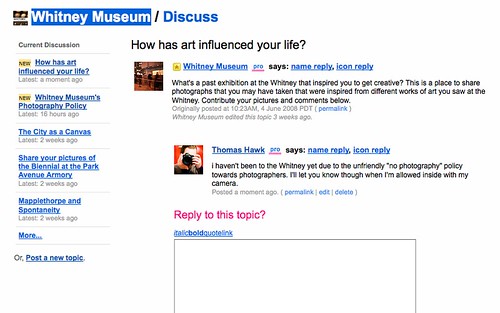
Looks like New York’s Whitney Museum is trying to build a presence on Flickr — they recently added me as a contact and started a Whitney Museum group. I’m not quite sure what photos they think people will be posting to their group photo pool as they don’t allow photography in their museum — of course I suppose there is always renegade photography at the Whitney.

They want to know what exhibits at the Whitney have influenced my life.

Unfortunately I’ve never gone beyond the Whitney’s lobby. It’s interesting that both their counterparts, the New York MOMA and the New York Metropolitan Museum of Art allow photography.

Maybe if the Whitney was a little more open towards photographers, photographers might be more interested in the Whitney.

Hopefully someday the Whitney changes their anti-photography policy and then I can visit and answer this question.

Photography is not a crime.

Abandoned SFO International Terminal

Main Gallery

Photo by Troy Paiva

Troy Paiva, who publishes on Flickr as Lost America, has a great recent set up documenting a few shoots that he and Bob Azzaro (4Pizon on Flickr) recently went on inside the old closed SFO International terminal that is scheduled for demolition later this year.

An interesting look at this amazing structure for sure. Troy has a set of images up that you can see here. Bob doesn’t have a set up of the airport shots but you can see his shots by using this search query.

Judge Throws the Book at Photographer, Tells Photographer He Needs to Go Visit Arlington Cemetery

It’s finally over … or is it? In an unfortunate turn of events, it looks like Carlos Miller, the Miami photographer and journalist who was arrested last year while photographing police, has been sentenced to one year probation, 100 hours of community service, anger management class and a $540.50 court cost payment.

Interestingly enough, a jury found Miller not guilty of both disobeying a police officer and disorderly conduct. They did find him guilty, however, of resisting arrest without violence.

The prosecutor in the case, Ignacia Vasquez, was asking the the court for 3 months probation, according to Miller, but instead judge Jose L. Fernandez threw the book at him giving him the sentence above.

Apparently the judge also suggested that Miller needed to visit Arlington National cemetery where the “real heroes” who fought for our freedom are buried.

It’s unfortunate that in the United States of America a photographer can be given probation for the crime of photographing the police. If Miller was “not guilty” of disobeying the police, and “not guilty” of disorderly conduct (his two other charges), then he should not have been arrested at all. I don’t really understand how he could have “resisted arrest” without violence. Did he say “no” you can’t arrest me? Was it verbal? Did he go limp and make them carry him away in handcuffs? But whatever the case I’m not sure that it warrants a one year probation sentence along with the rest of the judge’s package.

I’m sorry to hear about this decision Carlos and hope that you appeal an obviously biased judge’s (the you should visit Arlington cemetery to see real heroes quote is over the top) decision.

Jonathan

Jonathan

Recently I blogged about a new project that I am starting called $2 portraits. The idea is that I will offer $2 to anyone who asks me for money from now on in exchange for their portrait.

Today I met Jonathan. Jonathan was a soft spoken but friendly guy. When I asked him if I could take his portrait for $2, he told me that I could take his portrait for free.

Jonathan told me that recently he’d been featured on the Channel 11 news and seemed proud of this fact. He said that they came by the other day and interviewed him about what it was like to be out on the streets.

Jonathan has been in San Francisco for about a year. He came from Chicago Illinois before San Francisco. He said he likes it here better because it’s warmer. He also said that Illinois tended to have a lot more segregation. Not segregation in a legal sense he said but more just that white people and black people didn’t live in the same places there like they do here.

Jonathan said that he did not have much family left. He said his older brother recently died of diabetes. He said that he had one son who was in college.

While we were talking, he pointed out a plain clothes police officer to me who walked by. He said that the police know him and don’t mind him being there because he’s polite and not aggressive.